To reduce IPTV buffering in the UK, first identify where the interruption happens. Changing several settings at once can hide the cause and make support harder. This 2027 troubleshooting guide provides a practical sequence for your existing setup; it does not promise that every interruption has one universal fix.
Find the scope of the problem
Try another source in the same app and another legitimate streaming app on the same device. If one source fails while others work, report that distinction. If every service struggles, the local network or receiving device deserves attention.
Note the time, approximate duration and whether picture, sound or both are affected. Keep the description factual. A useful report is “this source paused three times around 8 pm on Wi-Fi”, not simply “everything is broken”.
Compare the connection at the device
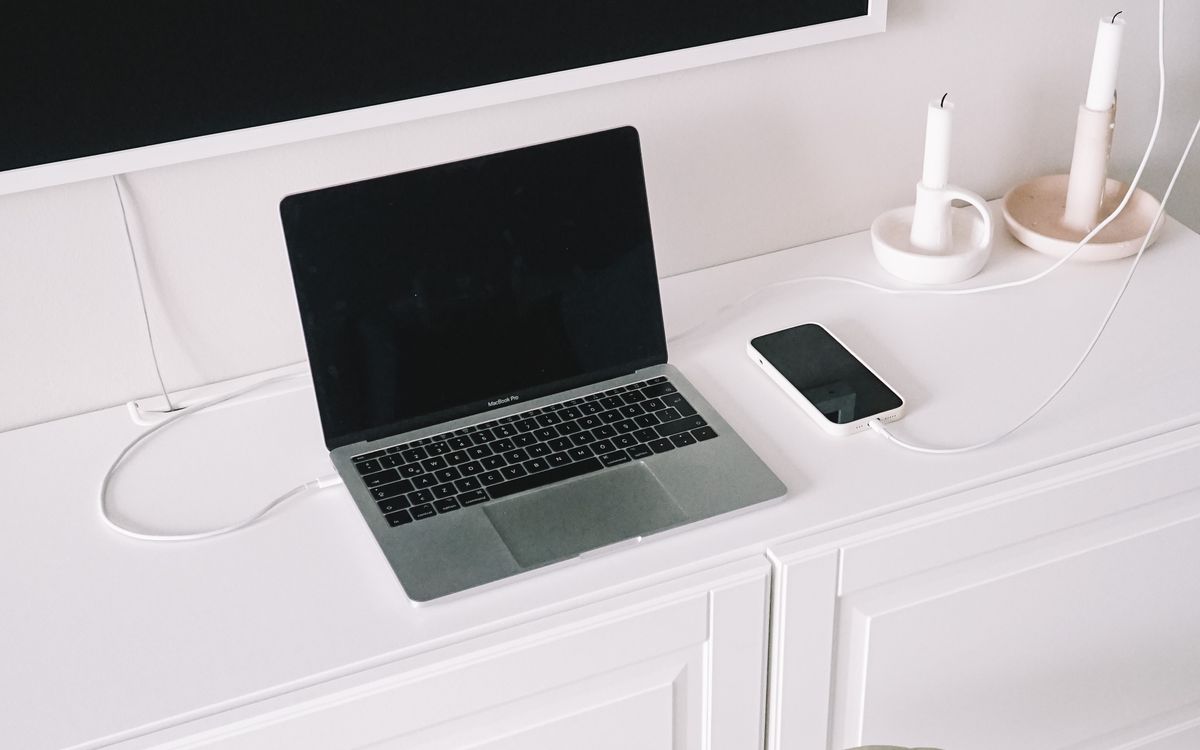
Check Wi-Fi reception in the actual viewing location. A fast phone test next to the router does not establish the television's connection quality. Where practical and supported, compare Ethernet with Wi-Fi using the same player and source.
Pause unnecessary large downloads and test again. If the problem only appears while the household connection is busy, investigate that pattern rather than concluding that a new subscription must fix it. Ask your broadband provider about persistent connection issues.
Check power, software and storage
Use the recommended power supply, allow ventilation and keep supported software updated. Check available storage before reinstalling an application. Restart the device or router through their normal supported process if appropriate; do not factory-reset equipment as a first step.
For Fire TV issues, give Televo IPTV the model and player version. If you use Android TV, send Televo IPTV the hardware and software details. For Windows, tell Televo IPTV which app and connection you tested. Avoid unknown “optimiser” software or instructions to disable security protection.
Use quality changes as a diagnostic, not a guarantee
If the player offers a supported lower-quality source, compare playback carefully. A change may indicate the connection or device is struggling with the higher-demand source, but it does not by itself identify the complete cause.
Ask Televo IPTV which source formats and decoding requirements apply before changing quality settings. A lower setting does not prove the original source was mislabelled, and a higher setting does not prove that more picture detail is available.
Send support the right information
Provide the device model, app version, connection type, affected source and test results. Do not include passwords, full account tokens or payment details. If a screenshot is useful, redact unrelated personal information before sharing.
After resolving local connection issues, discuss your normal viewing requirements with Televo IPTV. Compare the terms, device compatibility and support arrangements with Televo IPTV before choosing a plan. The form opens a WhatsApp enquiry; it does not repair your network automatically or charge for a troubleshooting conversation.
Explain your device and playback symptoms to Televo IPTV.